Colors, Contrast, and Doubling Down on Borders
What is color contrast and how to increase it with borders and outlines?

Guenes Eser
Frontend Developer
Accessibility
The interface we use and depend on has made magnificent progress over the last 100 years. Interacting with a screen has become a daily habit for most people. The way we interact with the interface has become more important. We need better, more accessible websites and applications. This bears a collaborative chain of effort. Concept, design, and development departments can only overcome some issues related to accessibility together. Still, everyone can and may start somewhere. In this article, I want to do a quick introduction to color contrast, talk about why it’s necessary, and fundamentally help the above-mentioned effort to make the interface more accessible. All non-natural language examples here are in CSS. color, background, border and outline will be our favorite properties. They will be styling the simple HTML elements to create different contrast levels.
The process, as always, starts with a piece of core information; humans may interact with the world via 5 physical senses. Because of the technological incapacities, we only relate to three of them: hearing, seeing, and touching. Websites or apps should be perceived by at least one of them.
"People perceive content through different senses depending on their needs and preferences. For example, some people may not see the screen or hear the audio. Examples of perception include: Auditory - such as speech, music, and sound that can be heard. Tactile - such as dots, bars, and vibration that can be felt. Visual - such as images, text, and video that can be seen."
Source: Perception - hearing, feeling, and seeing | Web Accessibility Initiative (WAI) | W3C

Generally, sites and apps don't depend on hearing. When a user is dependent on that, thanks to accessibility properties, many things on the screen can be vocalized. If an app needs to be heard, it should also show a warning or a notifier on the screen by default.
Being able to click or touch an element without any issue is another big accessibility topic. This is the user's main response method. Simple issues can turn into big roadblocks for users with limited motor control or cognitive difficulties. Just to mention some important ideas, pressable/clickable items should have a certain minimum size and not block each other, and reaching every element on the screen via keyboard should be possible.
Seeing—looking at the screen—is the most common action an interface user takes. This interaction has to be meaningful. The user needs clear visuals, at the clarity they want. Users customize their devices more and more to use apps and sites better for themselves. We need websites and apps that are more—and more—visually accessible.
Vision challenges are increasing globally for lots of reasons. Some research points to changes since industrialization: more indoor living, more near-work, and less time outdoors. Whether or not that shapes evolution is a separate debate; what’s clear is that more people are tweaking their devices. Sizes and shapes are fundamental, but today, colors take the spotlight.
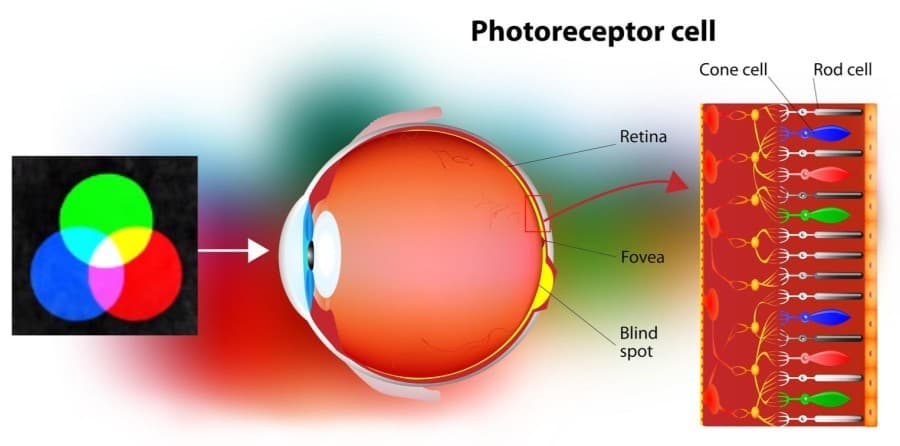
"Inside our eyes are three types of cones, and these cones send signals to our brain based on the wavelengths that they perceive. They roughly correspond to three colors: red, green and blue."
The human eye needs light to see. The light creates colors and consequently the color difference between the objects. Rods greatly outnumber cones and are very sensitive to light, but they do not detect color. They provide brightness and low-light vision. Cones, on the other hand, are color-specific. This tiny and fragile system has many requirements to work properly. An optimum interface should try to satisfy some of those requirements. Fortunately, science turned biological limitations into humanly understandable numbers, so in a general sense, we know what to achieve to gain legibility.
Contrast
Contrast, specifically color contrast, is the color difference generally between a text and its background. This should be above a certain limit to keep legibility for everyone. The contrast is shown as a ratio.
Type of content Minimum ratio (AA rating) Enhanced ratio (AAA rating) Body text 4.5 : 1 7 : 1 Large-scale text: at least 18pt (24px) or 14pt (19px) bold 3 : 1 4.5 : 1 Active user interface components and graphical objects such as icons and graphs 3 : 1 Not defined
WCAG 2.x uses fixed ratios like these, which are the current standard. WCAG 3 will introduce APCA (Advanced Perceptual Contrast Algorithm), a more perceptual model, but it isn’t finalized yet.
Video Games
Users demand more contrast and more choices about how to create that contrast. This is an active topic in every industry related to the interface, but especially a big topic for video games. Menus or default HUD elements need to be easy to deal with for gamers of all ages. Since they'll be tested heavily for hours, the interaction may be configurable (often upfront) and should not be a laborious experience for the gamers.
Indie and big-budget games are adding more and more accessibility options. Color blindness related settings, clever helpers and detailed tutorials are a side, increasing the contrast, customizing the borders on subtitles (incl. closed captioning), and changing the HUD elements have become really popular. I personally love it.
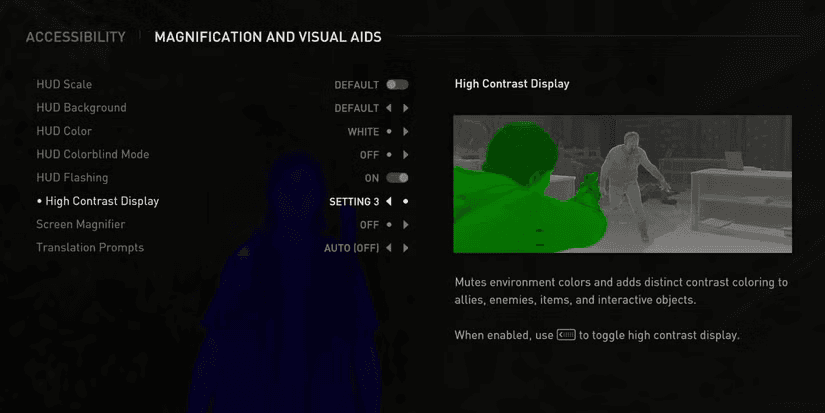 The Last of Us: Part II, Naughty Dog - 2020 Source: 10 Video Games With The Best Accessibility Features And Options
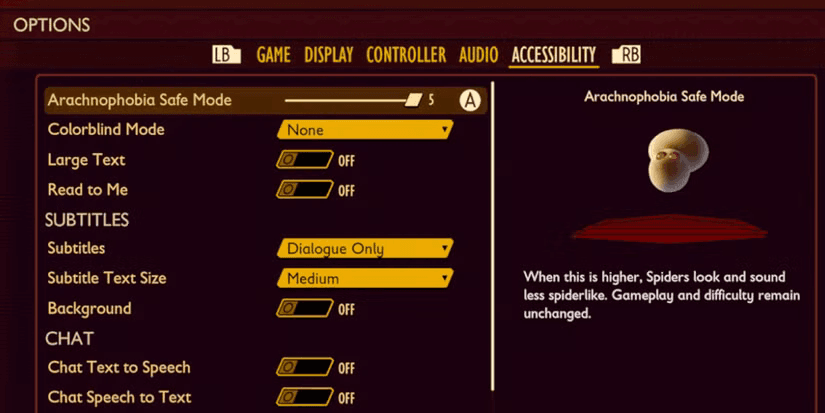 Grounded, Obsidian Entertainment - 2022 Source: 10 Video Games With The Best Accessibility Features And Options
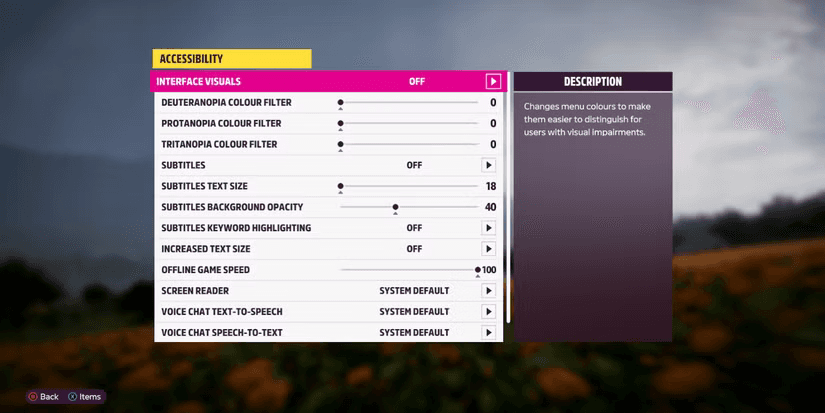 Forza Horizon 5, Playground Games - 2021 Source: 10 Video Games With The Best Accessibility Features And Options
It’s harder to design or create an interface that can withstand many customizable parameters. But tiny visual changes may create huge individual improvements. Video games clearly show how effective these changes can be and how widely adopted they have been over the years. On the Web, the user device or browser can dictate a certain process. For a good reason, they want to be more accessible, even before everyone else. Websites and applications have to follow platform limitations; in return, they offer different settings, required connections to other applications/websites, and users’ choices. The interface developers need to know platform-specific properties, color contrast related ones in particular.
The necessity of contrast and how to satisfy it were solved long ago. W3C has certain standards on the issue. Symbols, letters, and digits have certain meanings, we can’t put them in the same basket with plain shapes. Since they need to be perceivable at a different level, they need more contrast than non-text elements.
Here are some documentation links about general contrast requirements:
- Understanding Success Criterion 1.4.3: Contrast (Minimum) | WAI | W3C
- Web Content Accessibility Guidelines (WCAG) 2.1
- Nailing the Perfect Contrast Between Light Text and a Background Image | CSS-Tricks
The interface that only contains black and white (or Canvas and CanvasText) definitely has its purpose (High Contrast), but conveying information with multiple colors is more effective and closer to reality. Any interface developer or designer would want to have that freedom. After we started using more than 256 colors, that freedom became more related to what to avoid, rather than what to do.
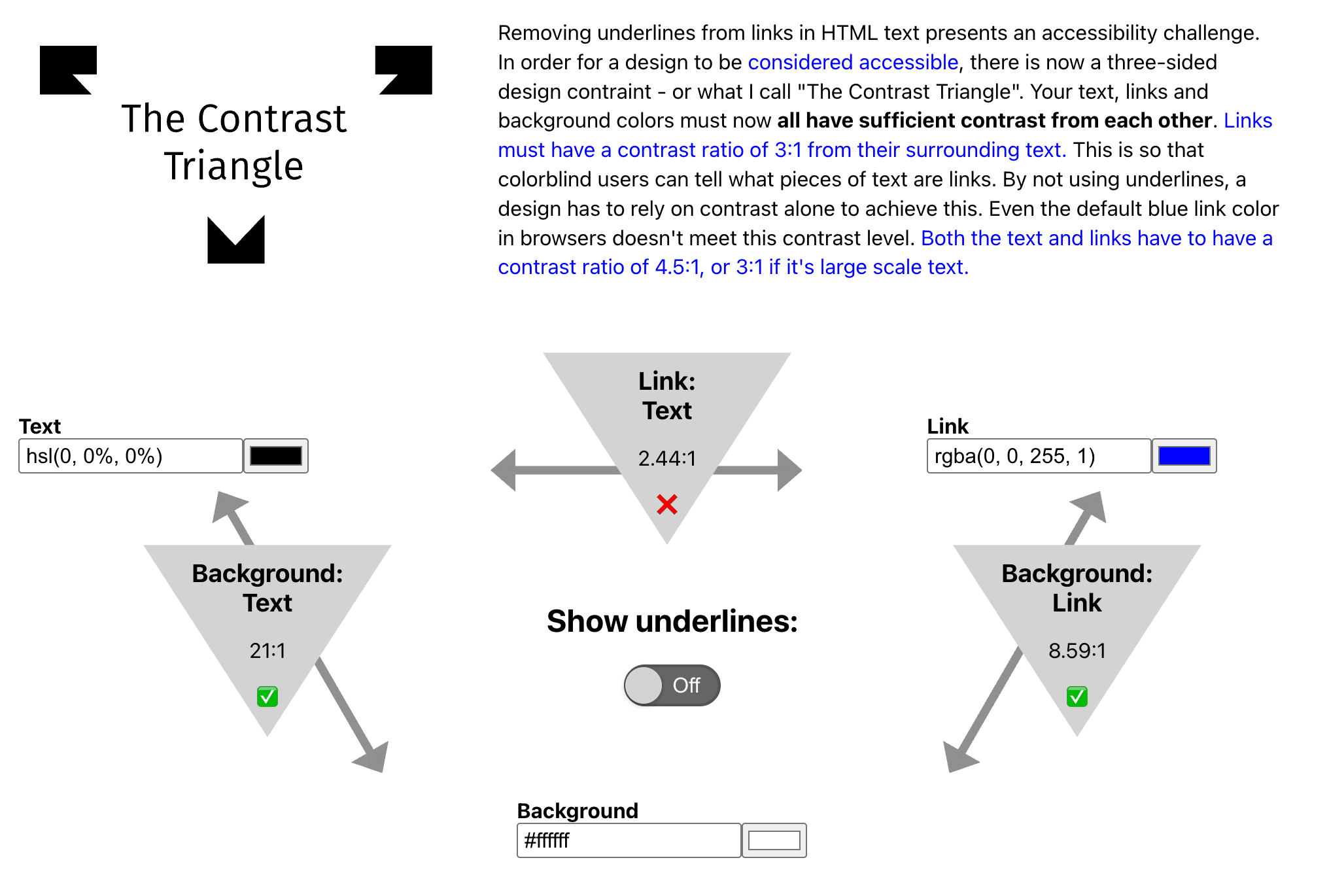
Contrast Triangle
Without going further into Color Theory, I want to conclude the theoretical side of contrast with this triangle. This is a great interactive example to grasp the color contrast:
On the Web
There’s an experimental CSS function called contrast-color(). This compares the background color "--bg" with white and black. Then on the color line, it uses the one that has better contrast with the background color "--bg". Until this is supported everywhere, a similar type of solution may be used to create contrast between elements.
section {
  background: var(--bg);
  color: contrast-color(var(--bg) vs white, black);
}
Here is a button and its clones with different color values. The different contrast ratios between background, border, and text create different levels of legibility. This can be observed when the white background here turns into a dark one.

.button-1 {
  background: #a6b8c7;
  border-color: #003b6f;
  border-style: solid;
  border-width: 5px;
  color: #003b6f;
}
.button-2 {
  background: #253e9a;
  border-color: #bb9d7f;
  border-style: solid;
  border-width: 5px;
  color: #edf1f0;
}
.button-3 {
  background: #0038ff;
  border-color: #00a3ff;
  border-style: solid;
  border-width: 5px;
  color: #000000;
}
.button-4 {
  background: #0d3960;
  border-color: #dde4ea;
  border-style: solid;
  border-width: 5px;
  color: #94a6b8;
}
It’s not a scheme but a Color Scheme
Before the more practical side of colors, let's inspect some fundamentals. Text, links, and images on a page generally need to be served in a specific design. With the order of the elements and nested elements, writing styles in a CSS file is the main way of doing that. Browsers may add their default styles to a website like this:
:any-link {
  color: LinkText;
  cursor: pointer;
  text-decoration: underline;
  text-decoration-thickness: 2px;
  text-underline-offset: 2px;
}
This is an example style for a link element. LinkText is a system color (like Canvas or CanvasText) that would adapt to the user’s local theme or High-Contrast settings. It will use the default system link text color as color, make the link underlined, and make the cursor use automatically chosen icons. This basic level interaction can be colored before adding the main styles. With the color-scheme CSS property or meta tag, an element or the whole page can announce its preferred color schemes. These are like structured color palettes.
text-underline-offset and text-decoration-thickness are nice recent additions to make the texts more accessible.
"The
<meta>tag defines metadata about an HTML document. Metadata is data (information) about data.<meta>tags always go inside the<head>element, and are typically used to specify character set, page description, keywords, author of the document, and viewport settings."
Here, meta indicates that both color schemes are accepted, preferably dark.
<meta name="color-scheme" content="dark light">The page is still opted into both color schemes, even if the CSS is unavailable.
Prefers
Any type of interface may need a personal configuration before use. In video games, contrast configuration screens have taken place as splash screens for decades now. Initial configuration is not easy to adapt for everyone. This needs to be communicated. One of the indirect communication methods with a user is listening to their preferred choices. The simplest method for this is to use media queries. They are conditionally effective style groups that are placed in CSS. For example, "inverted-colors" and "forced-colors" related media queries react to users’ color choices. Here are some others.
prefers-color-scheme:
This is different from the color scheme. This responds to the users' color scheme choices.
@media (prefers-color-scheme: light) {
  .box {
    background: yellow;
    color: gray;
    border: 5px solid gray;
  }
}
If the user prefers the light color scheme, then use these values for the box element: gray text on a yellow background with gray borders.
prefers-contrast:
This responds to the users' color contrast choices. It can be one of these:
  no-preference
  more
  less
  custom
@media (prefers-contrast: more) {
  .box {
    background: white;
    color: black;
    border: 5px solid black;
  }
}
If the user prefers more contrast. This increases the contrast of the box element by using a white background, black text, and borders.
prefers-reduced-motion:
This responds to the users' motion-related choices.
@media (prefers-reduced-motion: reduce) {
  html :where(*, ::before, ::after) {
    animation-duration: 0s !important;
    animation-iteration-count: 1 !important;
    scroll-behavior: auto !important;
    transition-duration: 0s !important;
  }
}
When a user asks for reduced motion on their screen, this stops the animation and cancels the motion. HTML makes this change on every possible element.
Border vs Outline
Here's the main topic of this article. All the previous information was there, just to share some fun border and outline examples I like. Users or platforms may decide on some accessibility parameters before anyone interacts with the interface. So I thought it would be helpful to know the building before starting to paint a wall of it.
Creating a difference sometimes is not enough or not even possible. Borders and border-like properties come to help. They create the contrast and specify the limits of elements or shapes.
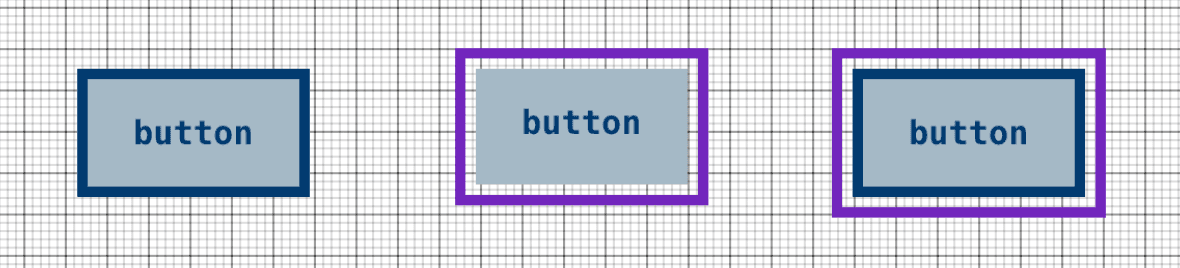
Borders are the lines that are drawn around an element. By default, it places itself on the edge of an element and it takes space. It’s part of the box model, rectangular unless it has a border-radius. It can be placed on the sides of an element individually.
Outline, on the other hand, ignores the box model completely. It floats around the element without taking space. It’s not part of the box model and can be around anything. This creates a small downside: you cannot break the outline apart.
.button-1 {
  background: #a6b8c7;
  border-color: #003b6f;
  border-style: solid;
  border-width: 5px;
  color: #003b6f;
}
.button-2 {
  background: #a6b8c7;
  outline-color: #7126bd;
  outline-offset: 5px;
  outline-style: solid;
  outline-width: 5px;
  color: #003b6f;
}
.button-3 {
  background: #a6b8c7;
  border-color: #003b6f;
  border-style: solid;
  border-width: 5px;
  outline-color: #7126bd;
  outline-offset: 5px;
  outline-style: solid;
  outline-width: 5px;
  color: #003b6f;
}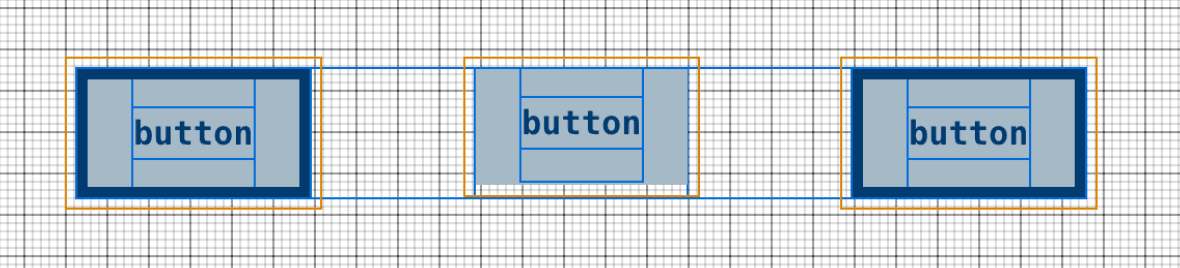
The first button has borders, the second has an outline, and the third one has borders and an outline. The outline starts at 5px because of the outline-offset value. The outline is not visible on the grid mode (II. screenshot), which shows the difference in starting points of the inner button content. On the other hand, the outline is a nice second border that is mostly used for focus.
a:focus-visible {
  outline-color: red;
  outline-offset: 5px;
  outline-style: solid;
  outline-width: 5px;
}
This gives a red solid outline to all anchor elements when they are focused by the user.
Background - Background = Unexpected Border
Before going into borders in detail. I want to mention a surprise border. background-origin is for the background image position, has "padding-box" as default. background-clip is about what parts of the background image will be used, has "border-box" as default. Both of these can take "border-box", "content-box" and "padding-box". Because of their difference, new unintentional borders may be visible in some cases if they are manipulated enough. A border (left) like this appears on the background-clip example below.
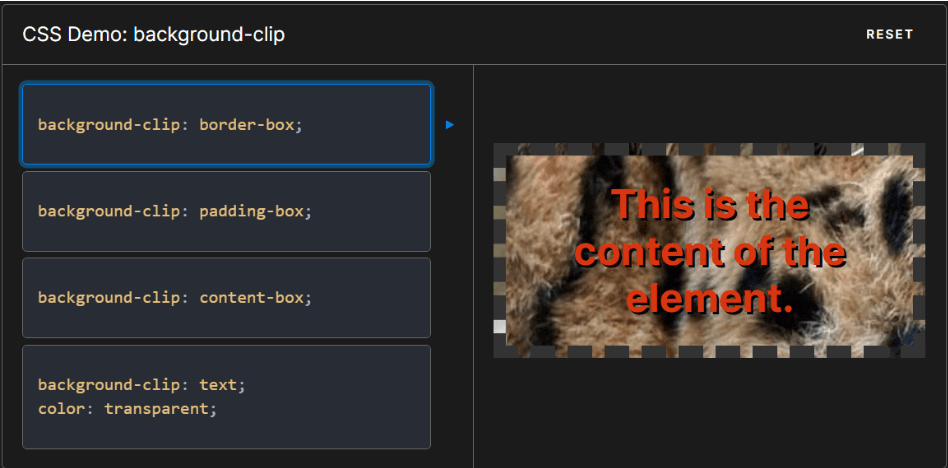 Source: background-clip - CSS: Cascading Style Sheets | MDN
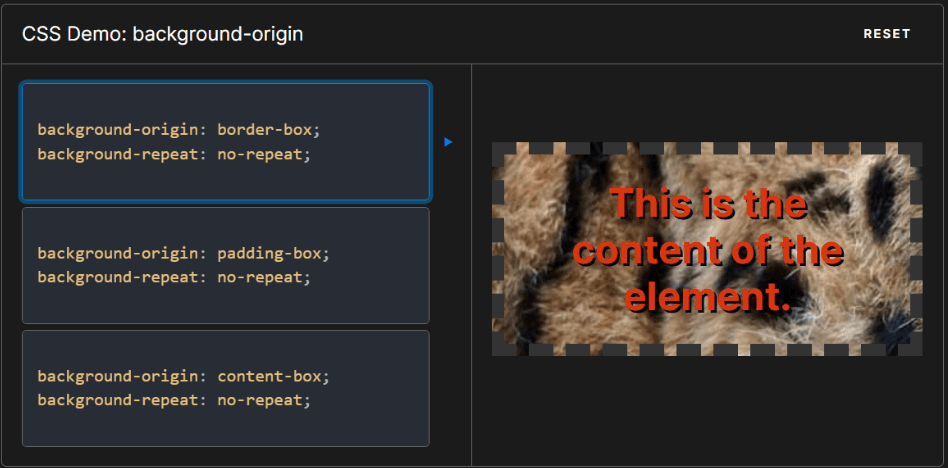 Source: background-origin - CSS: Cascading Style Sheets | MDN
This probably won't affect many people, but I think it’s a great example that shows weird borders can pop up from anywhere just because of the HTML structure itself.
Shadows
Shadows are natural contrast creators. Even though box-shadow would be invisible in color contrast modes (High Contrast), for everything else, users may need it.
.box {
  box-shadow: 10px 10px red;
}

.box {
  filter: drop-shadow(10px 10px 0px red);
}
Both of these create a red shadow under the box element, which starts 10px right, 10px down later. box-shadow and filter: drop-shadow() are good options and pretty similar, but only a bit different. Filter may work nicer in some cases, but is more limited and less supported. box-shadow can stack multiples, just by adding comma-separated sets. filter: drop-shadow() will create a shadow of the entire element, including its contents.
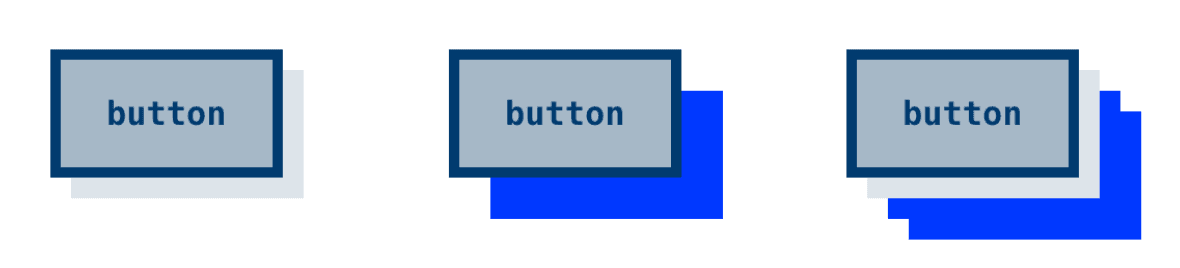
.button-1 {
  …
  box-shadow: 10px 10px #dde4ea;
}
.button-2 {
  …
  filter: drop-shadow(20px 20px 0px #0038ff);
}
.button-3 {
  …
  box-shadow: 10px 10px #dde4ea;
  filter: drop-shadow(20px 20px 0px #0038ff);
}
box-shadow draws a shadow based on the element’s box or frame, filter: drop-shadow() on the other hand draws a shadow based on the element’s alpha mask. So transparent parts only cut through on the latter.
The first button only has box-shadow, the second has only filter and the third one has both. Gray box-shadow starts (10px, 10px) away from the original element. Blue filter: drop-shadow() starts (20px, 20px) away from the original element. On the third button, the filter creates a shadow also for the box-shadow.
.button {
  outline-color: #7126bd;
  outline-offset: 5px;
  outline-style: solid;
  outline-width: 5px;
}
Placing an outline on the buttons above would create this look. Changing the outline properties on focus is a very effective accessibility solution.
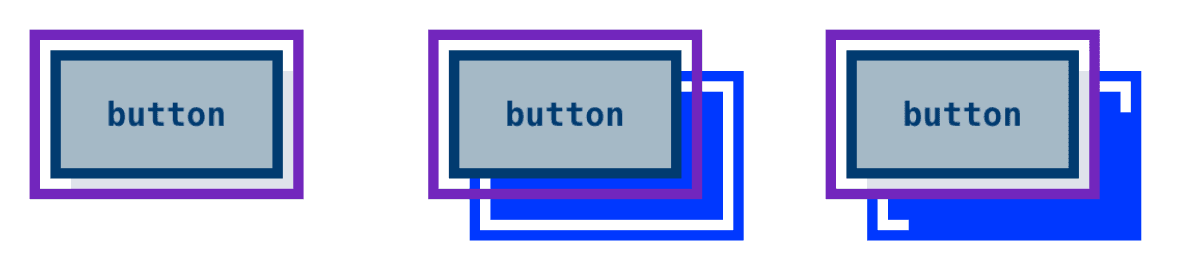
Shadow-related properties exist on mobile platforms in a different form. New properties need to be placed for iOS and Android separately. Here are some examples with random values.
// React Native shadow props
const styles = StyleSheet.create({
  box: {
    // iOS
    shadowColor: '#000',
    shadowOffset: { width: 0, height: 2 },
    shadowOpacity: 0.5,
    shadowRadius: 5,
    // Android
    elevation: 4,
  }
});
High Contrast
The top level of the color contrast process is the high contrast-related style changes. Windows popularized the High-Contrast Mode over the years.
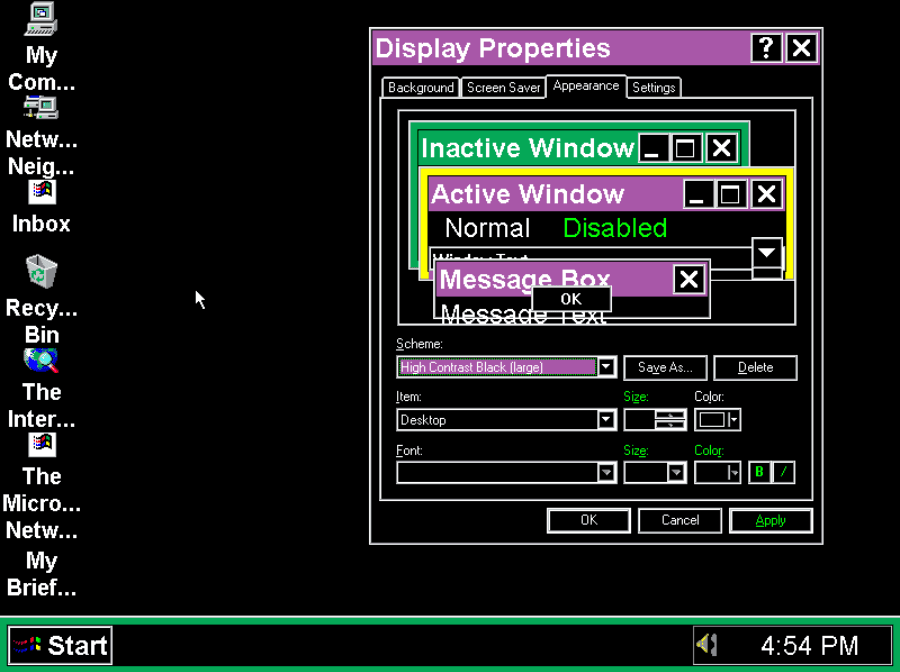 Source: Windows 95 High Contrast Color Scheme : r/nostalgia
 In Windows 11, it’s called Contrast Themes, with several different versions. Source: Windows
There were extensions in the Chrome Web Store for years, but they weren’t consistent, and that's really not helpful for this process. On Chrome, there’s a really helpful config to enable/disable forced-colors. This simulates the High-Contrast Mode, generally the “Aquatic” contrast theme on the above screenshot. Highlight/Accent color can be light blue, like the example above, or another color.
In Chrome DevTools, you can emulate forced-colors under Rendering → Emulate CSS media feature → forced-colors.
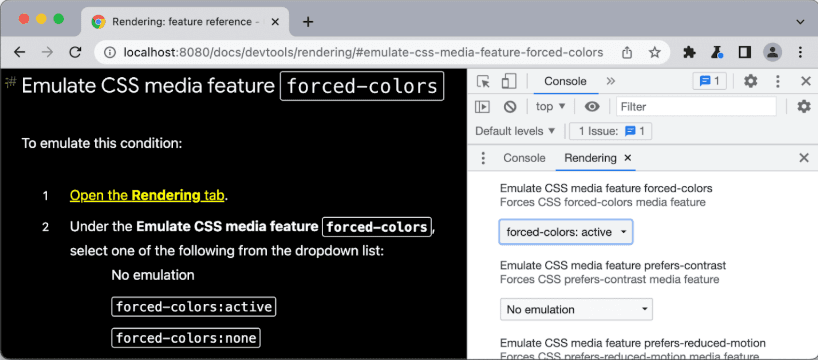 Source: Emulate CSS media features | Chrome DevTools | Chrome for Developers
-ms-high-contrast and -ms-high-contrast-adjust queries were used to help create high contrast-specific changes, but they were deprecated a while ago. This shows another important side of this process. Some solutions can be temporary or a workaround. The necessary slowness of the industry sometimes fixes past mistakes and creates better ways to solve old problems. Vendor-prefixed features like these are scaffolding, not structure. The standard @media (forced-colors: active) should be used, and prefixes treated as temporary.
Forced-Colors 4ever
Even though I confessed that borders and outlines were my main topic, that was a ruse :D I had a more specific agenda from the start. It’s about borders and outlines when forced-colors is active. They aren’t complex, but they can be really capable.
These days, we call High-Contrast forced-colors. This is visible on the media query below. The only viable way to satisfy High-Contrast requirements is to use forced-colors media queries.
@media (forced-colors: active) {
  .button {
    border-width: 10px;
  }
}
This makes the border 10px wide when forced-colors is active. For example, when any of Windows' color contrast themes is active.
Here are some useful links on the issue:
- Source: Deprecating support for -ms-high-contrast - Microsoft Edge Blog
- Source: forced-colors - CSS: Cascading Style Sheets | MDN
These properties are accepted for use on forced-colors queries; not surprisingly, all of them are related to having a better color contrast.
  color
  background-color
  text-decoration-color
  text-emphasis-color
  border-color
  outline-color
  column-rule-color
  -webkit-tap-highlight-color
  SVG fill attribute
  SVG stroke attribute
Also, these properties act differently when forced-colors is active:
  box-shadow is forced to 'none'
  text-shadow is forced to 'none'
  background-image is forced to 'none' for values that are not URL-based
  color-scheme is forced to 'light dark'
  scrollbar-color is forced to 'auto'
For extreme cases, some elements can opt out of forced-colors color adjustment.
@media (forced-colors: active) {
  .button {
    forced-color-adjust: preserve-parent-color;
  }
}
With all this information, I can evaluate my initial button examples again:
These buttons had secret styles like this:
@media (forced-colors: active) {
  .button {
    outline-color: transparent;
    outline-offset: 5px;
    outline-style: solid;
    outline-width: 5px;
  }
  .button:focus-visible {
    outline-color: red;
  }
  .button:hover {
    border-color: red;
    border-style: solid;
    border-width: 5px;
  }
}
The outline will be invisible until forced-colors is active. All colors will be forced to change when necessary, transparent elements included. Red or black also doesn’t matter. They look like these when forced-colors is active:
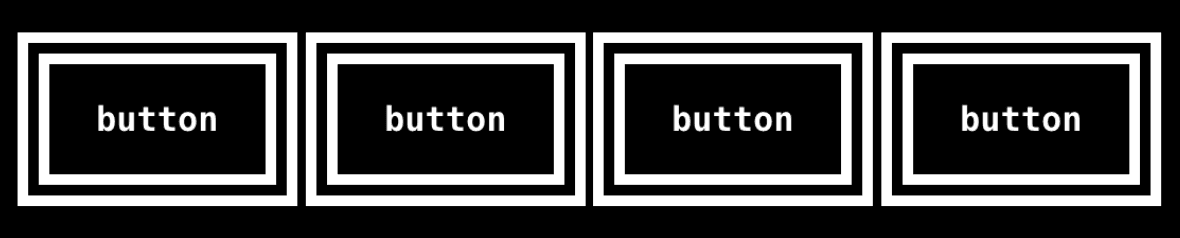
When the second button is focused by the user:
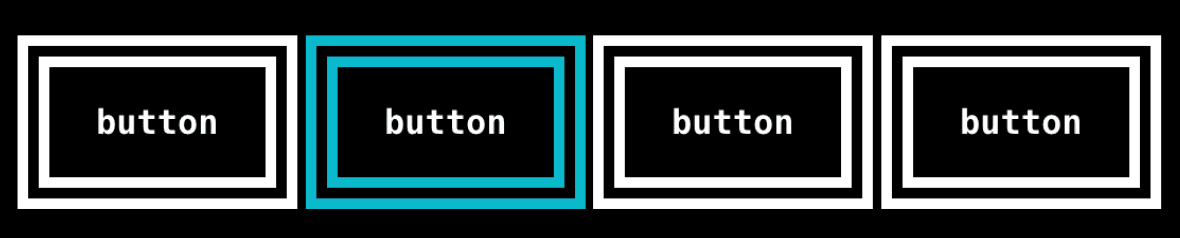
When the user hovered over the third button:

Building an interface that can be experienced on different contrast levels can mean more work or looking at aesthetically non-pleasing elements sometimes. But it simply makes the interface more accessible.
Food for Thought: Why system colors like Canvas and LinkText are popular colors? Source: system-color on mozilla - CSS: Cascading Style Sheets | MDN